Showing posts with label Top 10 Google News. Show all posts

Tuesday, August 12

Top 10 most important search engines For visual images

1) Google Images

Excellent resource. Very fast and compehensive. Good reference info for each image.

2) AltaVista Picture Search

Good image database. Great variety. Search options.

3) Alltheweb Image Search

Good image database. Search options available.

4) Ixquick Picture Search

Taps other image resources. Small thumbnails. Limited.

5) Lycos Multimedia

Good in depth but unfriendly due to excessive use of advertising and promotions on the side. Small thumbnails, few pictures displayed at a time.

6) Yahoo Picture Gallery

Interesting resource with lots of good images from a variety of sources (including Corbis).

7) Picsearch

This is as of today the image search engine I like the most. Great variety, extreme reach, fast, easy to use, good thumbnails and lots of good reference info. Couldn't be better.

8) Ditto

Even though Ditto suffers from too much inbreeding with advertisements and other product promotions it is still a fully image-dedicated search engine trying to survive through a dubious business model.

9) GettyImages

Exceptionally good in many commercial and artistic areas. Great resource.

10) Photos.com

A non-competitor of the two above "giants" (among very many) which I like to recommend for its ease of use and 100,000-wide selection of "royalty-free" images.

Friday, July 4

Top 10 Useful Gmail Tips by Gmail team

Today Google's official Gmail blog have listed the top 10 useful tips by Gmail team. So we published this useful post here to share it with our user as well


10) Have Gmail do your laundry - How to suggest new features for Gmail. We always like hearing from you.

9) Tips for importing old email to Gmail - A post on how to make the switch to Gmail as seamless as possible.

8) Edit contacts right from your chat list - When we released the newest version of Gmail, it came with some new bells and whistles. This one will help you clean up your chat list and change contact information quickly.

7) 2 Hidden ways to get more from your Gmail address - You can insert certain characters to your email address to get additional names out of it -- all of which still make it to your inbox.

6) How to find any email with Gmail search - To take the best advantage of Gmail search, we explain how to use search operators so you can find any email the first time.

5) 5 little-known Gmail features you may not yet know about - When we released the newest version of Gmail, there were a bunch of really useful features people didn't yet know about. So we told you about them.

4) Top 10 little known Gmail features (and Part 2) - In this post, we explained ten Gmail features that people generally didn't know about. From "custom from" to creating events in Gmail, this post goes over key features any serious Gmail user needs to know.

3) Getting Gmail anywhere: IMAP versus POP - A lot of people choose to get Gmail on mobile phones and destkop mail clients, so we went over the two most popular ways people do so and showed the key benefits of using IMAP -- which we've provided for free since the fall.

2) 3 Gmail Labs features that will spice up your inbox - This post covers how to enable and use the most popular Gmail Labs features: Superstars, Pictures in chat and Quick Links.

1) 9 reasons to archive - From the sophisticated to the snarky, these tips fueled the most viewed post in Gmail blog history. If this doesn't get you to archive, then we don't know what will.

Sunday, May 25

Top 10 Failure of Google

1.Google Flops:

google flops Google Incorporated is arguably the most successful Internet company today. But Google didn't get to where it is without takings risks--some of which have failed spectacularly.
For example, remember the Google Accelerator, which was supposed to speed up Web surfing? (A dubious claim, but least it was free.) But you had to pay to get a Google Answer, and eventually people stopped asking. Google Video did so well that the company finally gave up and shelled out big bucks to buy YouTube. If you can't beat 'em, buy 'em.
Some Google flops lasted no more than a day and then vanished without a trace. Other Google efforts have been left to languish like a neglected orphan inside Google's labyrinth of Web services. Still other dogs were released as betas nearly five years ago and are still trapped in Google Labs with apparently little hope of escaping the test tube.
Our list of Google's lead balloons is by no means exhaustive; if you have other candidates, by all means, point them out in our comments section below.

2.Google X:
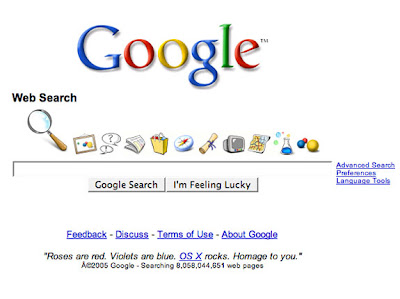
Google XOne of the most mysterious of Google's flops was its Google X site, a re-designed Google search home page that was styled after the Mac OS Dock user interface on OS X. On the bottom of the page was written "Roses are red. Violets are blue. OS X rocks. Homage to you." The site, which launched in 2005, lasted one day before being shuttered by Google for no public reason. Google X may have been pulled because of worries that Apple's copyright lawyers might not appreciate the "homage." But Google X has lived on with many Internet users cloning the interface for anyone to use.

3.Google Catalog:


Google Catalog

Interested in seeing what the latest prices for USB flash-based drives are? Google Catalog's top search result links you to a 2001 MicroWarehouse catalog where a 256MB Trek ThumbDrive Pro will run you $595. Google Catalog has been in a perpetual state of beta since 2002, and currently its most recent catalog offering for a search on "laptops" delivers a Cyberguys Spring 2006 catalog. Google Catalog now works more like the Internet Archive's Wayback Machine than like a place to browse and see before you buy.

4.Google Video Player:Google vedio playerAt one time Google thought we needed yet another application to download and play videos on our computers. Married to the company's online service Google Video, the Google Video Player's chief advantage was that it could play back video encoded using Google Video File (yet another video file format that Google thought we needed). But it supported video playlists, and it allowed you to skip ahead in a Google Video even if that portion hadn't downloaded yet. It turned out that the Web was already being well served with video players. Critics dinged the Google player for poor organization of video clips, paid content that varied too much in price, and its inability to transfer video content to portable devices. In August of 2007 Google yanked the player from the Google Video Web site.

5.Google Web Accelerator:Google Web AcceleratorGoogle's Web Accelerator is a combination of something you don't really need and something that may compromise your privacy. The software is still offered by Google and promises to speed up page load times of Web pages by as much as a less-than-stunning 20 percent.
Reviewers said that the target audience for Google Web Accelerator, broadband users, already can retrieve Web sites fast enough. And from the start, privacy activists such as Richard Smith accused Google of using Web Accelerator as a market research tool. Smith said, "They'll be looking at what people are doing on the Internet, what they're reading, what they're buying? There's potentially a lot of information just from the click-stream of the URLs people visit."

6.What Happened to Google Answers?Google Voice Search It FloppedFor five years Google Answers allowed anyone to post a question along with a bid price they were willing to pay for a researched answer. A prescreened group of Google Answer researchers would accept the fee (or not) and if they did accept the offer, answer the question.
Along with well-heeled high school and college students, I was a big fan of the site. Answers were usually complete, well researched, and well written. But quality isn't always rewarded on the Internet. Google just couldn't compete with Yahoo Answers, a free service that relied not on paying customers, but on a mammoth and loyal Yahoo community. Google's official Google Answers response to the question "What has happened to Answers?" is "There is no answer at this time." Google may not be accepting your questions, but you can still search the database of answers.

7.Google Coupons:Google Coupons It almost seems as if Google Coupons is Google's equivalent to a white rhino--they both exist but few have seen one. Google Coupons is a feature within the Google Local Business Center service that allows companies to create Web-based coupons and display them within Google Maps.
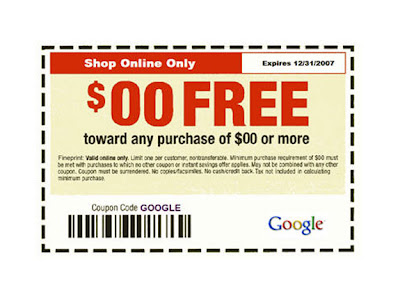
The idea behind Google Coupons is that when you are searching for a local business using Google Maps, a local company can deliver a coupon enticing you to do business with it. The coupon would be displayed next to the Google Map and could be printed out and redeemed.
It's a nifty idea, but as an avid user of Google Maps, in the two years Google Coupons has been available I've never come across one when using a map. Have you?

8.Google Voice Search:

Google AnswersFrom the Google department of way-before-its time came Google Voice Search. The service, which was originally an experiment within Google Labs, was launched in 2003 and worked like this. First, visit the Google Voice Search site. Next, call the phone number on the screen and speak your keyword search query. Then go back to your browser, click on the link on the Google Voice Search site, and bingo, a window with the search results appears.
No wonder this service got nixed. Searching the Web like this is comparable to calling up your brother-in-law to drive across town and brush your teeth for you before you go to bed. On the other hand, this cool technology experiment was a precursor to mobile phone services of today such as ChaCha and Google's own, very handy Google 411 service.

9.Google Viewer:Google VieweThe idea behind the Google Viewer software program was that you could type in a query, press submit, and then sit back and watch as it loaded actual Web pages that it found. Next, Google Viewer displayed the results to you as a slide show. The program, which PC World reported on in 2002, was eventually abandoned.
The idea of sneaking a peak at a Web page before clicking on the link eventually came to fruition--it just didn't require a software download to do it. Today you can preview pages in search results delivered by Ask.com, Powerset, and Yahoo, no application required.

10.Google Checkout:
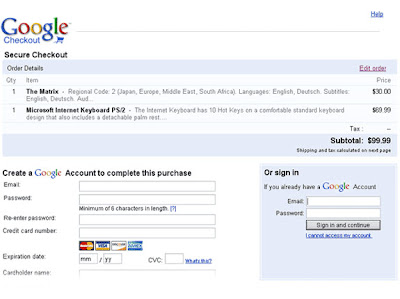
Google Checkout In June 2007 thousands of eBay loyalists descended on Boston for eBay's annual sellers convention. And in hopes of promoting its new Google Checkout payment system--which would be competing directly with eBay's Paypal subsidiary--Google organized a party to be held during the eBay show, inviting eBay sellers to attend. In addition, the Google party was supposed to be a protest against eBay for barring merchants from using Google Checkout.
When eBay got wind of Google's plan, it promptly cancelled all of its U.S. ads running on the search engine for more than a week. At the time, eBay was the single largest buyer of search ads on Google.Google cancelled its Boston tea party. (source: pcworld)

Saturday, February 2

Top 10 Affiliate Program to Join

What is Affiliate Program: An arrangement in which a company pays you a percentage of the sale for every online customer they get though a link from your website.

Always join the program which benefits you better.

Below are the list of top 10 affiliate program where you can earn more money comparing to the other program that are around

Here I have not listed the Google adsense and Yahoo Publisher Network as they are popular among the webmasters and bloggers.


XIMMY.COM


Its a social review site that pays you to share top news, videos, pictures and websites on the Internet. You will be rewarded 5 $ as a bonus for signup. So do signup now.

BIDVERTISER.COM


This site offers Online advertising on websites relevant to your business on a pay per click basis. Their adformat is seems to be good and they pay you every 10$, that you earn, via paypal


SMORTY.COM

Blog Advertising - Get Paid to Blog

"Get paid for blogging" is what Smorty says. Write your opinion about peoples products, services and websites on your blog. Get paid weekly..

SPONSORED REVIEW.COM


With SponsoredReviews, you set your own price. Depending on the size of your readership and the quality of your blog posts, you can earn anywhere from $10 to $1000 per review.


SCRATCHBACK.COM

Here you can accept tips & have fun, earn money from every tip you get, NO geeky skills needed to use or setup! YOU allow your readers to thank you for your work.


ADBRITE.COM


Here you can Customize your ads to match your site and you can Approve and reject ads for your site. This is the best site where you get resonable pay. I recommend this site for all users.

Now I'm analyzing some more affiliate program and comparing their benefits, to present you the rest, 4 more best affiliate programs. Will update here in 2 more day. Till then stay tuned...

Wednesday, January 30

Top 10 Tips To Master Gmail

Below are the list of powerful tips for using the Gmail efficiently. These are presented in question and answer type for your better understanding. These answers were given by Matt Cutts, who works for the quality group in Google, specializing in search engine optimization issues.
  1. Question: “I want to be able to paste images into the email.” Answer: it’s not quite the same as pasting images into emails, but one thing that makes image attachments easier is the dragdropupload Firefox extension. You know how you can click “Attach a file” and then you’ll see the familiar “enter a file location or Browse..” form appear? With dragdropupload, you can drag any file (e.g. from your Desktop) and drop it in that text box. It’s a fantastic extension that makes it much faster to include attachments or upload files, and I use it all the time.
  2. Question: “A sort that would allow for my unread messages to be at the top.” Answer: trying doing a search for label:unread label:inbox . That should show only unread messages that are currently in your inbox. By the way, did you like how I shared a search with you? That was a tip from the Gmail blog. There are other cool labels you can use as well.
  3. Question:

    I would like to have a feature for inserting prepared text blocks, so I dont have to write some things over and over again.

    Answer: if you use Firefox, check out the Signature firefox extension to insert text macros. That might work for you.

  4. Question:

    Crazy feature: I’d like to be able to have an easy way to migrate my entire Google account to a different gmail address, because I can’t find a step-by-step guide or anything to help me switch emails without losing various things.

    Answer: According to this post you can enable POP on your old account (look under Settings, then “Forwarding and POP/IMAP”), then import the emails (also using POP) into the new account. I think you could use Gmail’s Mail Fetcher utility to do this. To configure Mail Fetcher on the newer account, click on Gmail’s Settings link, then “Accounts” and then “Add another mail account.” Google Operating System (an unofficial blog that discusses Google often) has a couple relevant posts with a walkthough of using Gmail’s Mail Fetcher and a write-up on how to back up your Google account.

  5. Question:

    I would love to integrate my google apps account with my default gmail account. Although right now google allows to associate email address there is no way to integrate or link two google accounts (say one @gmail.com and another yourdomain.com powered by google apps).

    Answer: Right now the only solution is to forward mails from one box to another! If google makes integration possible we can use a single inbox to check mails from all those email address

    I’m not as familiar with the interaction of regular Gmail versus Gmail on Google Apps. This post described a scary-looking way that might work. If there’s a better way, maybe someone will stop by and let me know?

  6. Question:

    The ability to open Word, Excel, PowerPoint and PDF without going to another page and using another software

    Answer: S.E.W, this post from Lifehacker mentions that Gmail can offer HTML view or Google Doc options for Word and Excel.

  7. Question:

    I’d love to be able to resize the email composition box on the default page - so instead of having to click the icon to open the whole draft in a new resizable window, I’d be able to click and drag to make the draft box bigger (especially vertically).

    Answer:Easton, check out the Resizeable text area extension for Firefox. It lets you click on the border of any form textarea and drag the border so the textarea expands. I haven’t checked how it works on the latest version of Gmail though.

  8. Question & Answer:“I think the ability to open emails in new windows would be great - it would help those users who are always multi-tasking.” If you’re looking at an email look at the top-right of the page and click on “New window” to open that email in a separate email.
  9. Question:

    I don’t know if this would be possible, but how about, when clicking on the compose link (or reply etc) if I hold some key as I click on Compose, it opens the new email in its own window? Same thing could go for Replies etc.

    Answer: instead of using ‘c’ to compose a new email, type ‘C’ and you’ll open a new window to compose your email. It looks like using ‘R’ instead of ‘r’ to reply will open a new email for replies too.

  10. Question: “Is it me or does the pop3 server sometimes stop working when downloading email from gmail?” I’ve been using getmail to back up my Gmail, and I’ve noticed that Google will only let you download a few hundred emails in one batch. If you fetch again, you’ll often catch up. So usually it’s just a matter of being patient.
    Answer: I heard a lot of great suggestions that I wouldn’t even have thought of. For example, I liked the idea of a “bounce” option for unwanted emails to make it look as if your email address didn’t exist. Oh, and since so many people asked for cool features, let me add one more feature I want: let me set a different vacation message for co-workers compared to people outside Google. Maybe in Google Apps for Gmail, if you are managing example.com, let people on example.com set a different vacation message for people on example.com vs. other domains?

    By the way, what was the funniest suggestion I saw? Jeff Hall won with “A USB breathalyzer kit for a friend who forgets how embarrassing her e-mails are when she gets drunk. The e-mails could be delayed until she provides a negative sample.”

Monday, January 28

Ten Google-Search Tricks

Below are list of tricks for using in Google, that you probably don't know (source: lifehacker)


10. Get Local Time: Type in What time is it followed by any city to get the current time.


9. Track Flight Status: Enter the airline and flight number to find out the departure time and estimated arrival for any flight.


8. Convert Currency, Metrics, Bytes and More: Google has a built-in converter calculator. You can enter quarter cup in teaspoons, seconds in a year, 5 US dollars in Euros and countless others.


7. Search for Pages That are “Better Than,” “Similar to,” or “Reminds me of”: Enter “better than keyword” or “similar to keyword” to find Web pages you never knew existed.


6. Use Google as a Free Proxy: Enter cache:website.com to view a Web page that’s been blocked from the computer you’re using.


5. Remove Affiliate Links From Product Searches: To avoid seeing search results from certain sites, enter –site:website.com (ie, enter a "keyword" leave a "space" then –site:website.com")


4. Find Related Items: Enter ~ before any search term to find related items as well.


3. Find Music and Comic Books: Enter -inurl:(htm|html|php) intitle:"index of" +"last modified" +"parent directory" +description +size +(wma|mp3) "Band or comic book name" to find music files and comic books.


2. See Images of People, Objects, Etc.: Type in a search term, and click on images to see photos of the results.


1. Search for Faces: If you’re looking for a photo of a person named Rose, and don’t want to see photos of the flower, add &imgtype=face to the end of your image search. It will show you only images of faces.

Friday, January 4

Top 10 Obscure Google Search Tricks

Here is the top ten Google search tricks that are obscure.(source: lifehacker )

When it comes to the Google search box, you already know the tricks.But there are many more oblique, clever, and lesser-known search recipes and operators that work from that unassuming little input box. Dozens of Google search guides detail the tips you already know, but today we're skipping the obvious and highlighting our favorite obscure Google web search tricks.

10. Get the local time anywhere
What time is it in Bangkok right now? Ask Google. Enter simply what time is it to get the local time in big cities around the world, or add the locale at the end of your query, like what time is it hong kong to get the local time there.


9. Track flight status


Enter the airline and flight number into the Google search box and get back the arrival and departure times right inside Google's search results.


8. Convert currency, metrics, bytes, and more


Google's powerful built-in converter calculator can help you out whether you're cooking dinner, traveling abroad, or building a PC. Find out how many teaspoons are in a quarter cup (quarter cup in teaspoons) or how many seconds there are in a year (seconds in a year) or how many euros there are to five dollars (5 USD in Euro). For the geekier set, bits in kilobytes (155473 bytes in kilobytes) and numbers in hex or binary (19 in binary) are also pretty useful.


7. Compare items with "better than" and find similar items with "reminds me of"


Reader Adam taps the wisdom of the crowds by searching for like items using key phrases. He writes in:


Simply search for, in quotes: "better than _keyword_"

Some example results:

Results 1 - 100 of about 550 English pages for " better than WinAmp".

Results 1 - 57 of 57 English pages for " better than mIRC".

Results 1 - 100 of about 17,500 English pages for " better than Digg". (Wow. Poor Digg.)

The results will almost always lead you to discovering alternatives to whatever it is you're searching for. Using the same concept, you can use this trick to discover new music or movies. For example, " reminds me of _someband_" or "sounds like _someband_" will pull up artists people have thought sounded similar to the one you typed in. This is also a great way to find good, no-name musicians you'd probably never know of otherwise.

Examples:

Results 1 - 88 of 88 English pages for " reminds me of Metallica".

Results 1 - 36 of 36 English pages for " similar to Garden State".

Results 1 - 66 of 66 English pages for " sounds like The Shins".

Just get creative and you'll, without a doubt, find cool new stuff you probably never knew existed.


6. Use Google as a free proxy


What, your company blocks that hip new web site just because it drops the F bomb occasionally? Use Google's cache to take a peek even when the originating site's being blocked, with cache:example.com.


5. Remove affiliate links from product searches

When you're sick of seeing duplicate product search results from the likes of eBay, Bizrate, Pricerunner, and Shopping.com, clear 'em out by stacking up the -site:ebay.com -site:bizrate.com -site:shopping.com operator. Alternately, check out Give Me Back My Google, a service that does all that known reseller cleaning up for you when you search for products. Compare this GMBMG search for a Cruzer 1GB flash drive to the regular Google results.

4. Find related terms and documents

Ok, this one's direct from any straight-up advanced search operator cheat sheet, but it's still one of the lesser-used tricks in the book. Adding a tilde (~) to a search term will return related terms. For example, Googling ~nutrition returns results with the words nutrition, food, and health in them.


3. Find music and comic books


Using a combination of advanced search operators that specify music files available in an Apache directory listing, you can turn Google into your personal Napster. Go ahead, try this search for Nirvana tracks: -inurl:(htm|html|php) intitle:"index of" +"last modified" +"parent directory" +description +size +(wma|mp3) "Nirvana". (Sub out Nirvana for the band you're interested in; use this one in conjunction with number 7 to find new music, too.). The same type of search recipe can find comic books as well.


2. ID people, objects, and foreign language words and phrases with Google Image Search


Google Image search results show you instead of tell you about a word. Don't know what jicama looks like? Not sure if the person named "Priti" who you're emailing with is a woman or a man? Spanish rusty and you forgot what "corazon" is? Pop your term into Google Image Search (or type image jicama into the regular search box) to see what your term's about.


1. Make Google recognize faces


If you're doing an image search for Paris Hilton and don't want any of the French city, a special URL parameter in Google's Image search will do the trick. Add &imgtype=face to the end of your image search to just get images of faces, without any inanimate objects. Try it out with a search for rose (which returns many photos of flowers) versus rose with the face parameter.
Older Post ►
 

Copyright 2011 Top 10 is proudly powered by blogger.com | Design by BLog BamZ